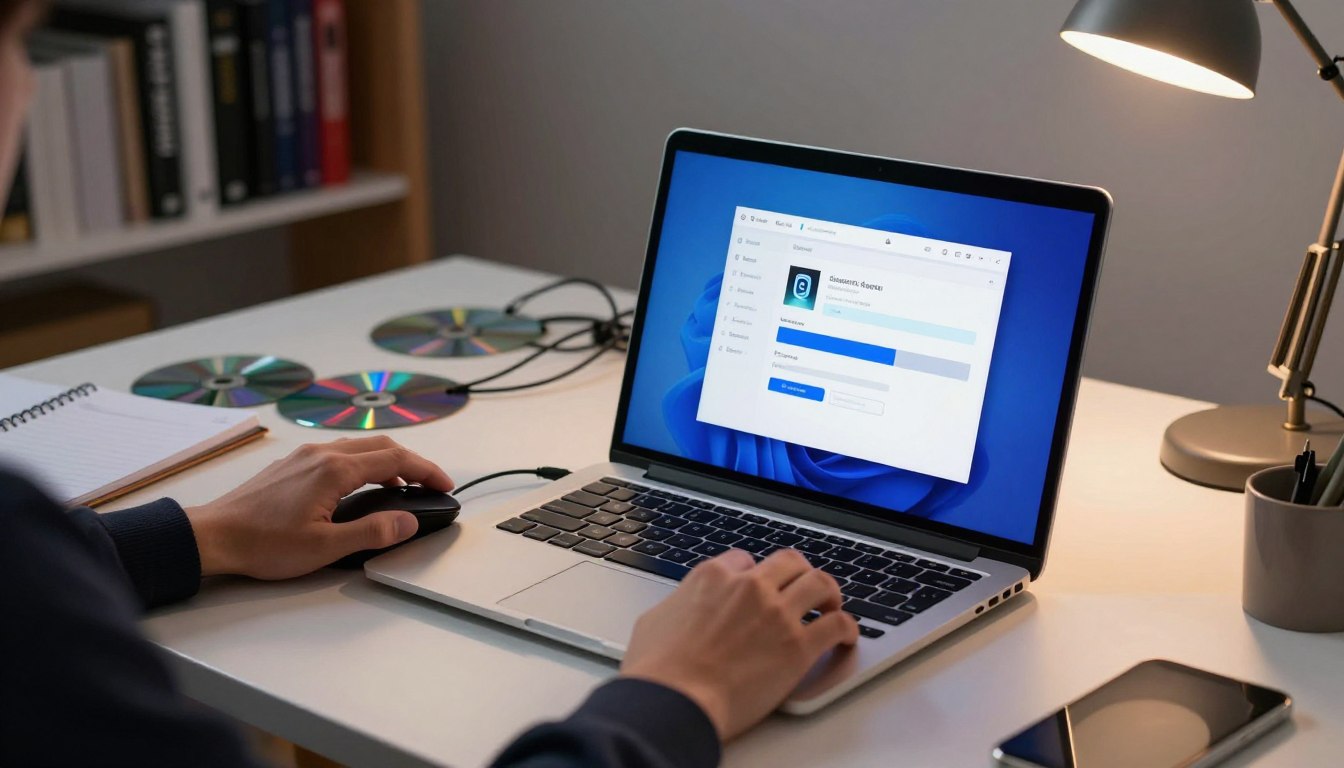
Have you ever felt like the hardware belongs more to the manufacturer than it does to the user? I often wonder why I cannot simply run my device according to my own personal preferences. I believe that you control everything once the physical machine is finally in your hands.
This means picking the right software without outside limits. Choosing your software represents a major step toward achieving true digital freedom. I find that installing operating system files manually grants me significantly more power over the hardware.

You control everything (like installing OS and apps)
It stops companies from tracking my every move. I can remove unnecessary bloatware that frequently slows down my machine during daily tasks. My primary goal is to demonstrate how to unlock total potential by taking charge of your tech.
We should build a space that fits our specific needs perfectly. I want my tech to work for me, not against me. Let’s explore how we can reclaim this authority to create a better digital experience today.
Key Takeaways
- Gain full authority over the digital environment.
- Eliminate pre-installed software that slows down performance.
- Improve privacy by choosing secure software options.
- Customize the user interface to match personal workflows.
- Unlock the true power of all hardware components.
- Stop manufacturer restrictions from limiting device capabilities.
The Philosophy of Digital Sovereignty
In today’s digital age, understanding and embracing digital sovereignty is crucial for maintaining autonomy over our devices. Digital sovereignty is about having control over our digital lives, including the devices we use and the data they hold. It’s a concept that has gained significant attention in recent years as people become more aware of the importance of privacy, security, and customization in their digital experiences.

controlling devices
Why I Choose to Own My Hardware
For me, owning my hardware is a fundamental aspect of digital sovereignty. When I own my device, I have the freedom to customize settings and make changes as I see fit. This isn’t just about tweaking performance settings; it’s about having the ability to decide what software I run, how I secure my data, and what features I enable or disable. By owning my hardware, I’m not limited by the constraints imposed by manufacturers or service providers.
Some key benefits of owning my hardware include:
- The ability to install any operating system or software I choose
- Control over security updates and patches
- Flexibility to customize my device to suit my specific needs
Breaking Free from Manufacturer Restrictions
Manufacturer restrictions can significantly limit our ability to control our devices. These restrictions can come in many forms, from locked bootloaders to proprietary software that can’t be modified. By breaking free from these restrictions, I can truly own my device and make it work exactly as I want it to.
Some common restrictions and how to overcome them include:
- Locked Bootloaders: Many devices come with locked bootloaders that prevent users from installing custom operating systems. Unlocking the bootloader can provide the freedom to install alternative OS options.
- Proprietary Software: Some manufacturers use proprietary software that can’t be easily modified or replaced. Exploring open-source alternatives can help overcome these limitations.
By understanding and embracing the philosophy of digital sovereignty, we can take back control of our devices and enjoy a more personalized and secure digital experience.
Preparing Your Hardware for Customization
Ensuring your hardware is ready for customization is a critical step that should not be overlooked. Before you start modifying your device, it’s crucial to take a few preparatory steps to guarantee a smooth transition.
Backing Up Your Essential Data
The first step in preparing your hardware for customization is to back up your essential data. This ensures that your important files and settings are safe in case anything goes wrong during the customization process. I always make sure to back up my data to an external drive or cloud storage service.
Tip: Use a reliable backup tool to ensure all your data is safely stored. Consider using services like Google Drive or Dropbox for cloud storage.
Checking Compatibility for Alternative Operating Systems
Not all hardware is compatible with every operating system. Therefore, it’s vital to check if your device supports the alternative OS you wish to install. I recommend researching the OS requirements and comparing them with your device’s specifications.
| Operating System | Hardware Requirements | Compatibility Check |
| Linux Ubuntu | 2 GHz dual-core processor, 4 GB RAM, 25 GB storage | Check device specs against OS requirements |
| Windows 11 | 64-bit CPU, 4 GB RAM, 64 GB storage, TPM 2.0 | Verify device meets Microsoft’s specified requirements |
Gathering Necessary Tools and Media
To customize your device, you’ll need the right tools and media. This includes the installation media for your chosen OS, drivers for your hardware, and any additional software required for customization.
For example, if you’re installing a Linux distribution, you’ll need a bootable USB drive with the OS image. Tools like Rufus can help you create this.

installing operating system
By following these steps, you’ll be well-prepared to customize your hardware. Remember, preparation is key to a successful customization process.
Understanding the Risks and Rewards
When you decide to take control of your device by customizing settings, you’re entering a world where you control everything. This journey can be incredibly empowering, allowing you to tailor your device to your specific needs and preferences. However, it’s essential to be aware of the potential risks involved.
Customizing your device can sometimes void its warranty, leaving you without official support or repair options. It’s crucial to weigh these implications before making significant changes.
Weighing Warranty Implications
One of the primary risks of customizing your device is the potential to void its warranty. Manufacturers often have strict policies against tampering with the device’s software or hardware. Before proceeding with any customization, it’s vital to understand the warranty terms and conditions.
Check the manufacturer’s website or contact their customer support to clarify what is covered under the warranty and what actions might void it. This knowledge will help you make an informed decision about how far you want to take your customization.
Security Considerations When Modifying Firmware
Modifying your device’s firmware can introduce security risks if not done correctly. Security considerations should be at the forefront of your mind when customizing your device. Ensure that you’re downloading firmware and software from reputable sources to minimize the risk of malware or other security breaches.
Additionally, be cautious when granting permissions to apps or custom software, as they may request access to sensitive information. Always review the permissions carefully and consider whether they are necessary for the app’s functionality.
By understanding the potential risks and taking steps to mitigate them, you can enjoy the benefits of a customized device while minimizing its downsides.
You Control Everything (like installing OS and apps)
Having control over my device means I can choose the software that best suits my needs. This level of control is empowering, allowing me to tailor my digital environment to my specific requirements.
The Power of Choosing Your Own Software Environment
Choosing my own software environment gives me the flexibility to select the operating system and applications that best fit my workflow. For instance, I can opt for a Linux distribution that is highly customizable, such as Ubuntu or Fedora, and install apps that are not available on official stores.
Key benefits of choosing my own software environment include:
- Flexibility in selecting the operating system
- Ability to install a wide range of applications
- Customization options to suit my workflow
Customizing Settings for Maximum Performance
Customizing settings is crucial for achieving maximum performance from my device. By tweaking system settings, I can optimize resource allocation, ensuring that my device runs smoothly and efficiently.
Some ways to customize settings include:
- Adjusting power settings to balance performance and battery life
- Configuring memory and CPU settings for resource-intensive tasks
- Optimizing network settings for faster data transfer
Tailoring the User Interface to Your Workflow
Tailoring the user interface to my workflow enhances my productivity. By customizing the interface, I can streamline my workflow, reduce distractions, and focus on the tasks at hand.
Ways to tailor the user interface include:
- Customizing the desktop environment to suit my preferences
- Installing extensions or add-ons to enhance functionality
- Configuring shortcuts and hotkeys for quick access to frequently used features
Installing Linux Distributions on Desktop PCs
Desktop PC users can unlock new possibilities by installing a Linux distribution tailored to their needs. This process not only gives users control over their operating system but also allows them to customize their computing experience.
When considering a Linux distribution, it’s essential to understand the various options available and their specific use cases. The choice of distribution depends on several factors, including hardware compatibility, user interface preferences, and software requirements.
Selecting the Right Distribution for Your Needs
With numerous Linux distributions available, selecting the right one can be daunting. Popular distributions like Ubuntu, Fedora, and Linux Mint are known for their user-friendly interfaces and extensive community support.
To make an informed decision, consider the following factors:
- Hardware compatibility
- User interface preferences
- Software availability
- Community support
| Distribution | User Interface | Hardware Compatibility |
| Ubuntu | GNOME | High |
| Fedora | GNOME | High |
| Linux Mint | Cinnamon | High |
Creating Bootable USB Drives with Rufus
Once you’ve selected a Linux distribution, the next step is to create a bootable USB drive. Rufus is a popular tool for this purpose, known for its ease of use and efficiency.
To create a bootable USB drive with Rufus:
- Download the ISO file of your chosen Linux distribution.
- Insert a USB drive with sufficient storage capacity.
- Open Rufus and select the USB drive.
- Choose the ISO file and follow the prompts to complete the process.
Navigating the BIOS and UEFI Settings
To boot from the USB drive, you may need to adjust your BIOS or UEFI settings. This involves accessing the firmware settings during startup and changing the boot order to prioritize the USB drive.
The process varies depending on the manufacturer, but generally involves:
- Restarting your PC and entering the BIOS/UEFI settings.
- Changing the boot order to prioritize the USB drive.
- Saving the changes and exiting the settings.
By following these steps, you can successfully install a Linux distribution on your desktop PC and enjoy the benefits of a customized operating system.
Exploring Mobile Device Customization
As I dive into the world of mobile device customization, I discover the true power of having control over my Android device. This journey is not just about changing the look and feel of my device; it’s about gaining full control over its capabilities and tailoring it to fit my unique needs.
Mobile device customization offers a range of possibilities, from unlocking bootloaders to flashing custom ROMs. Each step in this process allows me to have more control over my device, making it truly mine.
Unlocking Bootloaders on Android Devices
Unlocking the bootloader on my Android device is the first step towards customization. This process allows me to install custom software and modifications that are not available through official channels. It’s a crucial step for those who want to have full control over their device.
The process involves enabling developer options, unlocking the bootloader using fastboot commands, and understanding the risks involved, such as voiding the warranty. It’s essential to backup my data before proceeding, as unlocking the bootloader will erase all data on the device.
| Step | Description | Risks Involved |
| 1. Enable Developer Options | Go to Settings > About Phone > Build Number and tap 7 times | None |
| 2. Unlock Bootloader | Use fastboot commands to unlock the bootloader | Voiding warranty, data loss |
| 3. Backup Data | Backup essential data before unlocking | Data loss if not done |
Flashing Custom ROMs for a Fresh Experience
Flashing custom ROMs gives my device a fresh experience, offering new features, improved performance, and the latest Android versions. It’s a way to breathe new life into my device, making it feel like new again.
To flash a custom ROM, I need to ensure my device is compatible with the ROM, download the ROM and necessary files, and follow the installation instructions carefully. It’s crucial to choose a ROM that is stable and compatible with my device to avoid any issues.
Managing Root Access Responsibly
Managing root access is a critical aspect of mobile device customization. Rooting my device gives me superuser access, allowing me to modify system files and settings. However, it also comes with risks, such as voiding my warranty and potentially bricking my device if not done correctly.
To manage root access responsibly, I need to understand the risks and benefits, choose the right rooting method, and use root access judiciously. It’s also essential to keep my device’s software up to date and monitor its performance.
By following these steps and being mindful of the risks, I can enjoy the benefits of a customized Android device, having full control over its capabilities and features.
Mastering App Installation Beyond Official Stores
The ability to install apps from outside the official stores is a powerful tool in the quest for digital sovereignty. By doing so, users can access a broader range of applications, customize their devices more extensively, and take control of their digital experience.
To achieve this level of control, it’s essential to understand the processes involved in sideloading applications, utilizing open-source repositories, and ensuring the integrity and security of the apps installed.
Sideloading Applications Safely
Sideloading apps allows users to install applications not available on official stores. This can be particularly useful for devices that are no longer supported by the manufacturer or for apps that are not available in certain regions.
To sideload apps safely, users should:
- Only download apps from trusted sources.
- Verify the authenticity of the app and its developer.
- Be cautious of apps that request excessive permissions.
As noted by security experts,
“Sideloading apps can increase the risk of installing malicious software if not done carefully.”
Therefore, it’s crucial to follow best practices to minimize these risks.
Using Open Source Repositories
Open-source repositories offer a wealth of applications that are freely available and customizable. These repositories are often maintained by communities of developers who contribute to and support the software.
Some popular open-source repositories include:
| Repository | Description |
| F-Droid | A repository for Android apps that are free and open-source. |
| GitHub | A platform for developers to host and share their projects, including open-source apps. |
Verifying App Integrity and Permissions
Ensuring that an app is genuine and does not pose a security risk is crucial. This involves checking the app’s permissions and verifying its integrity.
When installing an app, review the permissions it requests. Be wary of apps that ask for permissions that seem unnecessary for their functionality.
To verify app integrity, users can check the app’s digital signature and look for reviews or ratings from other users.
Optimizing Your System for Privacy
The journey to digital sovereignty begins with optimizing our systems for privacy, a step that empowers us to ‘you control everything’. As I take control of my digital environment, I focus on several key areas to ensure my system is secure and private.
Removing Bloatware and Unwanted Services
One of the first steps I take is removing bloatware and any unwanted services that came pre-installed on my device. These often unnecessary programs not only consume resources but can also pose a risk to privacy if they are connected to the internet or collect user data without consent.
To remove bloatware, I carefully review the installed programs and services, uninstalling anything I don’t recognize or use. This process helps to declutter my system and reduce potential vulnerabilities.
Configuring Firewall and Network Settings
Configuring my firewall and network settings is another crucial step. By setting up a robust firewall, I can control incoming and outgoing network traffic, blocking any suspicious activity that could compromise my privacy.
I also ensure that my network settings are configured to prioritize security, using protocols like WPA3 for Wi-Fi connections and keeping my router’s firmware up to date.
Managing Background Processes
Managing background processes is vital for maintaining privacy. Some applications may continue to run in the background, potentially collecting data or performing tasks without my knowledge.
I regularly monitor the processes running on my system, closing or uninstalling any that are unnecessary. This not only enhances privacy but also improves system performance.
By taking these steps, I can significantly enhance my system’s privacy, ensuring that my digital activities remain secure and private.
Automating Your Workflow with Custom Scripts
The true power of controlling devices lies in the ability to automate workflows, making life easier and more productive. By automating repetitive tasks, I can focus on more complex and creative endeavors. This not only enhances my productivity but also reduces the likelihood of human error.
Introduction to Shell Scripting Basics
Shell scripting is a powerful tool for automating tasks. It involves writing a series of commands in a file that can be executed as a program. To start with shell scripting, I need to understand the basics of the shell environment and how to write simple scripts.
For instance, I can create a simple script to backup my important files. Here’s an example:
bash
#!/bin/bash
# Backup important files
cp /path/to/important/files /path/to/backup/location
This script copies files from one location to another. To make it executable, I use the chmod +x filename.sh command, and then I can run it by typing ./filename.sh in the terminal.
Key Elements of a Shell Script:
- Shebang (#!/bin/bash): Specifies the interpreter to use.
- Comments (#): Used to explain what the script does.
- Commands: The actual instructions to be executed.
Scheduling Tasks for Efficiency
Once I have a script, the next step is to schedule it to run at specific intervals. This is where tools like `cron` come into play. `cron` is a job scheduler in Unix-like operating systems that allows me to schedule tasks (cron jobs) to run at specific times or intervals.
To schedule a task, I use the crontab -e command to edit the cron table. For example, to run my backup script daily at 2 AM, I would add the following line:
bash
0 2 * * * /path/to/backup/script.sh
This line tells `cron` to execute the script at 2 AM every day.
Common Scheduling Patterns:
| Pattern | Description |
| 0 0 * * * | Run at midnight every day |
| 0 2 * * * | Run at 2 AM every day |
| */5 * * * * | Run every 5 minutes |
By mastering shell scripting and task scheduling, I can significantly enhance my productivity and efficiency in managing my digital environment.
Troubleshooting Common Installation Issues
Troubleshooting is a critical step in the customization process that can save you time and stress. When you’re customizing your device, things don’t always go as planned. Issues like driver conflicts, boot loops, and the need to restore factory settings can arise, but with the right knowledge, you can overcome them.
Resolving Driver Conflicts
Driver conflicts occur when two or more drivers are incompatible or malfunctioning, causing system instability. To resolve this, you should:
- Identify the conflicting drivers using system logs or diagnostic tools.
- Update or reinstall the drivers to the latest version compatible with your system.
- Disable any unnecessary drivers to prevent future conflicts.
Regularly updating your drivers can prevent many conflicts, ensuring your system runs smoothly.
Recovering from Boot Loops
A boot loop happens when your device continuously restarts, failing to boot properly. To recover from this:
- Boot into safe mode or recovery mode to diagnose the issue.
- Check for any recent software or driver updates that might be causing the problem.
- Perform a system restore to a previous point when your device was functioning correctly.
Being cautious with software installations can help you avoid boot loops.
Restoring Factory Settings When Necessary
Restoring your device to its factory settings should be a last resort, as it erases all your data and customizations. However, it can be a useful troubleshooting step when other methods fail.
To restore factory settings:
- Backup your important data to an external drive or cloud storage.
- Access the recovery mode or settings menu to initiate the factory reset.
- Follow the on-screen instructions to complete the process.
By understanding how to troubleshoot common installation issues, you can customize your device with confidence, knowing you have the skills to address any problems that arise.
Maintaining Your Custom Environment
Customization is just the first step; maintaining your device is equally important. When you control everything about your device, from the OS to the apps you use, ensuring that all components work harmoniously is crucial.
Maintaining your custom environment involves several key practices that help in keeping your device secure, efficient, and running at its best. This includes keeping your operating system and applications updated, as well as monitoring the overall health and stability of your system.
Keeping Your OS and Apps Updated
Updating your OS and apps is vital for security patches, new features, and performance improvements. Regular updates can fix bugs, enhance user experience, and protect against vulnerabilities. It’s essential to check for updates regularly and understand the update process for your specific OS and apps.
For Linux distributions, for example, updates can often be managed through command-line tools or graphical user interfaces. It’s also a good practice to subscribe to update notifications from your OS and app vendors to stay informed about critical updates.
| Update Type | Description | Frequency |
| Security Patches | Fixes for security vulnerabilities | As needed |
| Feature Updates | Adds new functionalities or improves existing ones | Regularly, e.g., monthly or quarterly |
| Maintenance Updates | Bug fixes and performance enhancements | Regularly, e.g., weekly or bi-weekly |
Monitoring System Health and Stability
Monitoring your system’s health involves checking for signs of trouble before they become major issues. This includes keeping an eye on system logs, monitoring resource usage, and checking for overheating or hardware failures.
Tools like htop or top for Linux can be invaluable for monitoring system resources. Understanding how to interpret the data these tools provide can help you identify potential issues early on.
By maintaining your custom environment through regular updates and monitoring, you can ensure that your device continues to serve you well, providing a secure, efficient, and personalized experience.
Community Resources for Continued Learning
The open-source community is a treasure trove of knowledge and support, essential for anyone looking to install operating systems and manage app installations effectively. As I continue on my journey of customization, I’ve found that engaging with this community is not only helpful but also enriches my overall experience.
Engaging with Open Source Forums
Open-source forums are vibrant hubs where individuals share their experiences, solutions, and insights. By participating in these forums, I can gain valuable knowledge on troubleshooting common issues related to installing operating systems and app installations.
For instance, forums dedicated to specific Linux distributions or Android customization offer a wealth of information on overcoming challenges and optimizing my digital environment.
Contributing Back to the Community
As I grow more confident in my ability to install operating systems and manage app installations, I also look for opportunities to contribute back to the community. Sharing my own experiences, whether through writing tutorials or offering advice on forums, not only helps others but also reinforces my own understanding.
One of the ways I contribute is by documenting my experiences with different operating systems and apps. By sharing this information, I hope to help others who are just starting their journey.
By engaging with the open-source community and contributing back, I not only enhance my skills in installing operating systems and managing app installations but also become part of a larger ecosystem that thrives on shared knowledge and mutual support.
Conclusion
By now, it’s clear that taking control of our devices is not just a possibility, but a reality within our grasp. When we choose to install our own operating systems and apps, we unlock the true potential of our hardware. This journey, as outlined in the preceding sections, involves understanding the philosophy behind digital sovereignty, preparing our devices for customization, and navigating the risks and rewards associated with it.
Customizing settings to suit our needs is at the heart of this process. By doing so, we not only enhance our user experience but also ensure that our devices serve us more efficiently. Whether it’s through installing Linux distributions on desktop PCs or exploring the possibilities on mobile devices, the power to shape our digital environment lies in our hands.
As I reflect on the steps involved in this process, from mastering app installation beyond official stores to automating our workflow with custom scripts, it becomes evident that taking control is both empowering and liberating. By embracing this approach, we are not just users; we become the masters of our digital destiny, capable of tailoring our devices to fit our unique needs and preferences.
Ultimately, when you control everything about your device, you open yourself up to a world of possibilities. The journey may require patience and learning, but the reward is a personalized and efficient computing experience that aligns with your workflow and enhances your productivity.